
Table of Contents
If you enjoy crafting, personalizing gifts, making custom T-shirts, or creating home décor, choosing the right cutting machine can make your projects easier and more enjoyable. In this cricut explore 3 machine review, we examine what this electronic cutting machine offers, how it performs, which materials it can cut, and whether it is a worthwhile choice for beginners and experienced crafters.
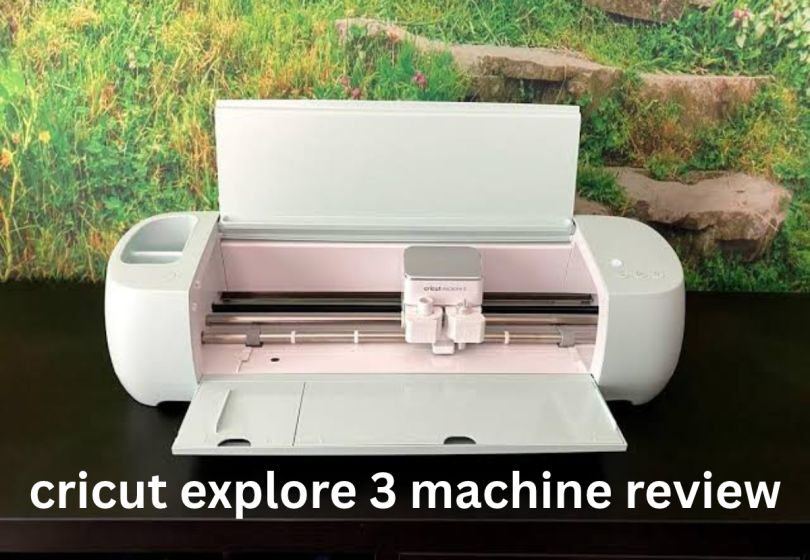
The Cricut Explore 3 is a smart cutting machine designed to help users create detailed designs from materials such as vinyl, iron-on transfer material, paper, and cardstock. It supports Smart Materials for mat-free cutting on compatible projects, making it useful for everything from small personalized labels to longer decorative designs.
However, it is not the best choice for every crafter. Material compatibility, software requirements, accessory costs, and the type of projects you plan to make all matter when deciding whether this machine suits your needs.
Let’s explore its features, strengths, limitations, and alternatives so you can make an informed decision.
What Is the Cricut Explore 3?
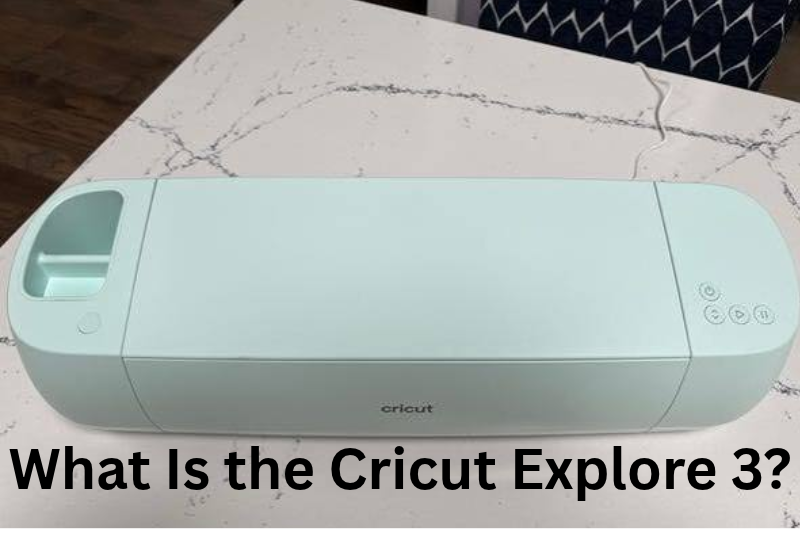
The Cricut Explore 3 is an electronic cutting machine from Cricut that uses digital designs to cut shapes, letters, patterns, and decorative elements from compatible materials.
Instead of cutting everything by hand, you can select a design in Cricut Design Space, adjust its size, arrange it on your project, and send it to the machine. The machine then follows the digital instructions to cut the selected material.
It is designed for hobbyists, home-based businesses, DIY enthusiasts, teachers, and people who enjoy personalized crafts.
Common projects include:
- Custom T-shirts and tote bags
- Vinyl decals for windows, laptops, and walls
- Greeting cards and invitations
- Personalized mugs using suitable adhesive vinyl
- Paper flowers and scrapbook decorations
- Labels for kitchens, offices, and storage containers
- Party decorations, gift boxes, and event signage
The Explore 3 sits in Cricut’s midrange cutting-machine category. It offers more cutting versatility than a basic manual craft cutter while avoiding some of the advanced capabilities and additional cost associated with higher-end machines.
Cricut Explore 3 Machine Review: Key Specifications
Before looking at real-world uses, it helps to understand the machine’s main specifications and what they mean for everyday crafting.
| Feature | Cricut Explore 3 |
|---|---|
| Machine type | Electronic cutting machine |
| Compatible software | Cricut Design Space |
| Standard cutting width | Up to 11.7 inches on a compatible 12-inch mat |
| Maximum Smart Material cut length | Up to 12 feet for compatible Smart Materials |
| Compatible materials | Paper, cardstock, vinyl, iron-on, and selected specialty materials |
| Mat-free cutting | Yes, with compatible Smart Materials |
| Writing and drawing | Yes, with compatible pens and accessories |
| Scoring | Supported with compatible tools and materials |
| Print Then Cut | Supported for compatible printed designs |
| Bluetooth connectivity | Yes |
| Operating system support | Compatible Windows, Mac, iOS, and Android devices, subject to current software requirements |
Specifications can vary by material, tool, and project configuration. Check Cricut’s current compatibility guidance before purchasing accessories or planning a project that depends on a specific size or material.
Main Features of the Cricut Explore 3
The Explore 3 combines digital design software, automatic cutting, and compatibility with a range of crafting materials. Here are the features that matter most in everyday use.
1. Smart Materials for Mat-Free Cutting
One of the most useful features of the Cricut Explore 3 is its support for Cricut Smart Materials.
Traditional cutting projects generally require you to attach the material to a cutting mat before loading it into the machine. Compatible Smart Materials can be loaded directly, eliminating the need for a mat on supported projects.
This can be especially helpful when creating:
- Long wall decals
- Window graphics
- Large lettering for signs
- Repeated vinyl labels
- Decorative designs for parties and events
Mat-free cutting can save preparation time and simplify longer projects. However, you still need to follow the machine’s loading instructions and use materials that are specifically compatible with this feature.
Important: Smart Materials are not the same as ordinary vinyl or cardstock. Standard materials generally require an appropriate cutting mat.
2. Faster Cutting Performance
Cricut introduced the Explore 3 with improved cutting speed compared with the original Explore Air 2 on supported projects. Cricut advertised speeds up to twice as fast for compatible Smart Materials workflows.
In practical terms, faster cutting can be useful when producing multiple decals, labels, or other repeated designs.
Actual performance depends on factors such as:
- The complexity of the design
- The type and thickness of the material
- The selected cutting settings
- The tools being used
- The size of the project
A simple vinyl word may cut quickly, while an intricate design with many small details will take longer. Material preparation, weeding, and transferring the design can also take more time than the cutting itself.
3. Cricut Design Space Software
Cricut Design Space is the companion software used to prepare and send projects to the Explore 3.
You can use it to create or customize designs, add text, resize shapes, arrange layers, and prepare projects for cutting. It also provides access to Cricut’s design library and supported project features.
Design Space is available for compatible computers and mobile devices, although some functions and workflows may differ between platforms.
For beginners, the software makes it possible to start with ready-made designs instead of creating everything from scratch. More experienced users can arrange their own graphics and combine multiple elements in a single project.
There are a few things to keep in mind:
- You need a compatible device to operate the machine.
- Some designs and content require payment or a Cricut Access subscription.
- Certain features may depend on your device, software version, or account.
- Learning how to resize, layer, attach, and prepare designs takes practice.
The software is powerful enough for many home crafting needs, but it may feel less straightforward to users who prefer a completely independent, offline workflow.
4. Multiple Material Options
The Explore 3 is not limited to vinyl cutting. It can work with a variety of compatible materials using the appropriate blade, tool, and settings.
These include:
- Adhesive vinyl
- Iron-on or heat-transfer vinyl
- Paper and cardstock
- Label materials
- Selected specialty craft materials
- Compatible printable materials for Print Then Cut projects
This flexibility allows you to use one machine for several types of creative work.
For example, you could cut adhesive vinyl for a storage label, cardstock for a greeting card, and iron-on material for a tote bag during the same crafting session.
Not every material is supported, and not every material can be cut without a mat. Always consult Cricut’s material compatibility recommendations before loading unfamiliar materials.
5. Writing, Drawing, and Scoring
The Explore 3 can do more than cut shapes.
With compatible tools, it can draw or write on suitable materials and create scoring lines that help you fold paper accurately.
These functions are useful for:
- Wedding invitations
- Handmade greeting cards
- Gift tags
- Foldable paper boxes
- Scrapbooking layouts
- Personalized stationery
Scoring is particularly helpful for projects that require clean, consistent folds. You will need a compatible scoring tool or other supported accessory for the intended workflow.
6. Bluetooth Connectivity
Bluetooth lets you connect the Explore 3 wirelessly to compatible devices.
This helps keep your crafting area organized because you do not need a direct USB connection for supported wireless workflows. It can also make it easier to position a laptop or compatible mobile device where you can see the design and machine at the same time.
A stable connection is important, especially when preparing larger projects. Keep your device within a reasonable range and make sure its operating system and Design Space version meet Cricut’s current requirements.
How Well Does the Cricut Explore 3 Cut?
Cutting quality is one of the most important factors in any Cricut Explore 3 machine review.
For everyday projects using compatible materials and appropriate settings, the Explore 3 is capable of producing clean shapes, readable lettering, and detailed decorative cuts.
However, the final result depends on more than the machine itself.
Cutting Vinyl
The Explore 3 is well suited to adhesive vinyl projects such as decals, labels, and decorative lettering.
For the best results:
- Choose a suitable vinyl type.
- Select the correct material setting.
- Make sure the blade is clean and in good condition.
- Run a small test cut when trying an unfamiliar material.
- Weed away excess vinyl carefully.
- Use transfer tape when appropriate for the design.
Small lettering and intricate shapes can require patience, especially when removing excess vinyl.
Cutting Cardstock and Paper
The machine can cut many paper and cardstock designs, making it useful for greeting cards, invitations, scrapbook embellishments, and party decorations.
Choose an appropriate mat and material setting. If the cardstock lifts, tears, or fails to cut cleanly, check the blade condition, mat adhesion, and pressure setting before assuming the machine is defective.
For delicate paper, a clean mat and careful removal technique can make a noticeable difference.
Cutting Iron-On Vinyl
Iron-on vinyl, also called heat-transfer vinyl or HTV, is commonly used to personalize clothing, bags, and fabric accessories.
The Explore 3 can cut compatible iron-on materials, but cutting is only one part of the process. You will also need an appropriate heat source and must follow the material manufacturer’s temperature, pressure, and application instructions.
Remember to mirror the design when required by the specific iron-on material and cutting workflow. Forgetting this step can make text and directional designs appear backward on the finished project.
Working With Intricate Designs
Detailed patterns can look impressive, but they are not always the easiest projects for beginners.
Tiny shapes, narrow lines, and closely spaced letters can be difficult to weed or transfer. Use a suitable material, avoid unnecessarily small design elements, and test complicated projects before cutting expensive material.
The Explore 3 is a capable hobby machine, but it should not be treated as a universal cutter for every material or level of detail.
Pros and Cons of the Cricut Explore 3
Every cutting machine involves trade-offs. The Explore 3’s main strengths are its versatility and Smart Materials support, while its limitations become more noticeable when users need advanced material compatibility or a completely self-contained workflow.
Advantages
- Beginner-friendly project options: Ready-made designs and guided workflows help new crafters get started.
- Smart Materials support: Compatible materials can be cut without a mat for supported projects.
- Versatile crafting: One machine can handle paper, vinyl, iron-on materials, and other supported media.
- Improved cutting speed: Supported Smart Materials projects can benefit from faster cutting than the Explore Air 2.
- Wireless operation: Bluetooth connectivity provides flexibility when setting up your workspace.
- Writing and scoring functions: Compatible tools extend its usefulness beyond basic cutting.
- Suitable for small businesses: It can help produce custom decals, labels, personalized gifts, and similar products in modest quantities.
Disadvantages
- Software dependency: You must use Cricut Design Space to prepare and operate projects.
- Additional supply costs: Blades, mats, vinyl, transfer tape, pens, and other materials can increase the total cost.
- Limited material range compared with higher-end options: It does not offer the same material and tool capabilities as Cricut’s Maker family.
- Mat-free cutting has restrictions: Only compatible Smart Materials and supported workflows qualify.
- Learning curve for detailed projects: Intricate designs may require practice, adjustments, and careful weeding.
- Not a complete production solution: Large commercial workloads may call for a more specialized machine.
Cricut Explore 3 vs. Cricut Explore Air 2 vs. Cricut Maker 3
If you are comparing Cricut machines, the Explore 3 is easier to evaluate when you consider the alternatives.
<PRIVATE_PERSON> model names and availability can vary across retailers and regions, so compare the exact model and included accessories rather than relying on a listing title alone.
| Feature | Explore Air 2 | Explore 3 | Maker 3 |
|---|---|---|---|
| General purpose | Everyday paper and vinyl crafts | Everyday crafts with Smart Materials support | Broader and more advanced material options |
| Smart Materials | Not supported in the same mat-free Explore 3 workflow | Supported | Supported |
| Cutting speed | Older Explore generation | Faster on supported projects than Explore Air 2 | Faster on supported Smart Materials projects than earlier Maker models |
| Material versatility | Standard Explore material range | Standard Explore material range | Broader supported material range |
| Specialized tools | Explore-compatible tools | Explore-compatible tools | Wider tool compatibility, including tools for selected advanced materials |
| Best suited to | Budget-conscious beginners | Hobbyists wanting convenience and versatility | Users needing more advanced cutting capabilities |
Is the Explore 3 Better Than the Explore Air 2?
The Explore 3 is generally the more convenient option if you want mat-free cutting with compatible Smart Materials or expect to make longer designs.
The Explore Air 2 may still be worth considering if you find it at a substantially lower price and mainly work with standard materials on cutting mats.
Before buying an older model, check whether it is new, refurbished, or used and confirm which accessories are included.
Should You Buy the Explore 3 or Maker 3?
Choose the Explore 3 if your projects mainly involve paper, vinyl, iron-on material, labels, cards, and everyday personalized crafts.
Consider the Maker 3 if you need access to a wider range of supported materials and specialized tools. Its additional capabilities may be useful for more demanding projects, but they are not necessary for every crafter.
The best choice depends on the materials you expect to use regularly, not simply on which machine has more features.
Is the Cricut Explore 3 Good for Beginners?
Yes. The Explore 3 is a good option for beginners who want to move beyond scissors, craft knives, and manual lettering.
Its digital workflow lets you start with existing designs, practice basic cuts, and gradually learn more advanced techniques.
For a first project, consider making a simple vinyl label or a personalized greeting card. These projects help you learn how to load materials, choose settings, position designs, and remove cut pieces without needing many accessories.
Beginners should also understand that owning the machine does not automatically make every project easy. You will need time to learn the software, choose suitable materials, and troubleshoot occasional cutting problems.
Essential Supplies for Beginners
You do not need to buy every available Cricut accessory immediately.
Start with the supplies that match your intended projects:
- A compatible fine-point blade
- A suitable cutting mat for standard materials
- Basic adhesive vinyl or cardstock
- Weeding tools for removing unwanted vinyl
- Transfer tape for suitable adhesive-vinyl designs
- Compatible iron-on material if you plan to personalize clothing
- A compatible computer or mobile device
If you plan to apply iron-on designs, you will also need a suitable heat press or another heat source recommended for the material.
A small starter collection is usually more practical than purchasing many materials before you know what you enjoy making.
Can You Use the Cricut Explore 3 for a Small Business?
You may also like to read these posts:
How to Make Resin Coasters at Home
DIY Floating Shelves for Beginners
How to Make Homemade Scented Candles
DIY Macrame Wall Hanging Tutorial
How to Make Paper Flowers Step by Step
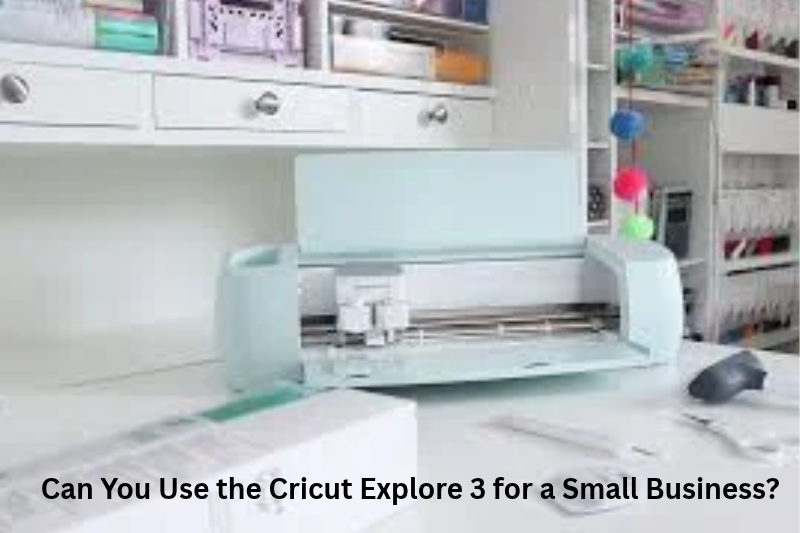
The Explore 3 can be useful for a home-based craft business, particularly one focused on personalized products and small production runs.
Potential products include:
- Custom vinyl decals
- Personalized labels
- Party decorations
- Gift tags and greeting cards
- Tote bags and clothing designs
- Small business packaging labels
- Personalized event signage
Its Smart Materials capability can simplify certain longer designs, while its ability to work with different materials makes it useful for varied orders.
However, the machine’s suitability depends on your production needs.
What to Consider Before Selling Cricut Projects
Production time: Include designing, cutting, weeding, transferring, finishing, and packaging in your calculations.
Material waste: Test unfamiliar materials before using them for paid orders. Poor cuts can waste supplies and reduce your profit.
Equipment costs: Account for the machine, replacement blades, mats, vinyl, transfer tape, heat-application equipment, and other supplies.
Design permissions: Check the applicable licensing terms before selling products made from purchased or subscription-based designs. Also make sure you have the necessary rights to use logos, artwork, and branded graphics.
Production volume: If you regularly need large quantities or cut specialized materials, compare the Explore 3 with machines designed for higher-volume work.
The Explore 3 can support a small craft business, but whether it is profitable depends on your pricing, demand, workflow, and operating costs.
Cricut Explore 3 Price and Overall Value
The value of the Explore 3 depends on the price available in your region, its condition, and the supplies included in the package.
Because retail prices and bundles change, it is better to compare current listings than rely on an outdated price quoted in a review.
When evaluating the cost, consider the complete setup rather than the machine alone.
Your total budget may include:
- The cutting machine
- Blades and cutting mats
- Vinyl, cardstock, and iron-on material
- Transfer tape and weeding tools
- A compatible heat press, if needed
- Optional designs or subscription content
A bundle can offer convenience if it includes materials you genuinely plan to use. However, a lower-priced machine with the right essential accessories may be better value than a larger bundle filled with supplies you do not need.
Before buying, check the seller’s return policy, warranty terms, included accessories, and compatibility information. If purchasing a used machine, ask to see it operating and confirm that its power supply and moving parts are in good condition.
Tips for Getting Better Results With the Cricut Explore 3
A few simple habits can improve your cutting results and reduce wasted material.
1. Test Unfamiliar Materials
Do not assume that every vinyl, cardstock, or specialty sheet will cut properly with the same settings.
Use a small test cut before committing to a large design.
2. Keep the Blade and Mat in Good Condition
A worn or dirty blade can produce incomplete cuts. A mat that has lost its grip may allow the material to shift.
Inspect both regularly and replace them when necessary.
3. Prepare Designs Carefully
Check the design dimensions, orientation, and spacing before cutting. For layered designs, make sure the elements are arranged correctly in Design Space.
This is particularly important when working with small lettering or multiple colors.
4. Use the Correct Settings
Material thickness and composition affect cutting performance. Follow Cricut’s recommended settings and make adjustments only when necessary.
Avoid applying excessive pressure without first checking the material and blade requirements.
5. Learn the Difference Between Adhesive Vinyl and Iron-On Vinyl
Adhesive vinyl sticks to suitable surfaces, such as glass, plastic, and some finished wood. Iron-on vinyl is designed to bond to compatible fabrics or other approved surfaces using heat.
They are not interchangeable, so choose the material according to your project.
6. Save Successful Project Settings
When you find a combination that works well for a particular material, keep a note of the material type and settings used.
This can make future projects easier and help you identify the cause of inconsistent cuts.
Common Cricut Explore 3 Problems and How to Fix Them
Even a well-designed cutting machine may need occasional troubleshooting.
The Machine Does Not Cut All the Way Through
Check the blade for debris or wear, verify the selected material setting, and inspect the cutting mat.
Run a test cut and consult Cricut’s troubleshooting guidance before making larger adjustments.
Vinyl Tears During Weeding
Intricate artwork, unsuitable settings, a dull blade, or low-quality material can make weeding difficult.
Try simplifying tiny design details, checking the blade condition, and testing the material with a more appropriate setting.
The Material Shifts During Cutting
Make sure the material is positioned correctly and firmly attached to a suitable mat when the project requires one.
For Smart Materials projects, follow the machine’s loading instructions and confirm that the material is compatible with the selected workflow.
Design Space Cannot Connect to the Machine
Check that Bluetooth is enabled, the device is within range, and the machine is powered on.
Restarting the software or checking for updates may help. If the issue continues, consult Cricut’s official connection troubleshooting instructions for your operating system.
The Finished Design Looks Different From the Screen
Check the project dimensions, material orientation, layer arrangement, and any mirroring requirements.
For Print Then Cut projects, follow the current instructions for your printer, material, and device. A small test project can help you identify problems before using expensive supplies.
Frequently Asked Questions
Is the Cricut Explore 3 worth buying?
The Explore 3 is worth considering if you regularly make vinyl decals, cards, labels, iron-on designs, or personalized gifts. Its Smart Materials support and broad everyday crafting capabilities make it versatile. It is less suitable if you need advanced material compatibility or specialized tools available with higher-end machines.
What materials can the Cricut Explore 3 cut?
It can cut compatible materials such as adhesive vinyl, iron-on vinyl, paper, cardstock, and selected specialty materials. The exact material range depends on the machine’s supported tools and settings. Some materials require a cutting mat, while compatible Smart Materials can be cut without one.
Does the Cricut Explore 3 require a computer?
You need a compatible device running Cricut Design Space, but it does not necessarily have to be a desktop computer. Compatible Windows and Mac computers, as well as supported iOS and Android devices, can be used for supported workflows. Check current system requirements before purchasing.
Can the Cricut Explore 3 cut without a mat?
Yes. The machine supports mat-free cutting with compatible Cricut Smart Materials and supported project configurations. Standard materials such as ordinary cardstock and many types of vinyl generally require a suitable cutting mat.
Can the Cricut Explore 3 make T-shirts?
Yes. You can cut compatible iron-on vinyl designs and apply them to suitable garments using an appropriate heat source. Follow the material manufacturer’s application instructions and check that the fabric is compatible with the transfer material.
Is Cricut Design Space free?
Cricut Design Space is available without requiring a Cricut Access subscription for basic supported workflows. However, some designs, fonts, images, and content may require payment or a subscription. Check the current terms for the content you plan to use.
Final Verdict: Should You Buy the Cricut Explore 3?
This cricut explore 3 machine review shows that the machine is a practical choice for crafters who want a versatile electronic cutter for everyday creative projects. Its support for Smart Materials, improved cutting speed on supported workflows, Bluetooth connectivity, and compatibility with paper, vinyl, and iron-on materials make it useful for both beginners and experienced hobbyists.
Its main drawbacks are the need to use Cricut Design Space, the additional cost of materials and accessories, and its more limited material capabilities compared with the Maker family.
Our recommendation: Choose the Cricut Explore 3 if you want to create personalized gifts, vinyl decals, greeting cards, labels, and simple apparel designs without investing in a more advanced cutting machine. If your projects require specialized materials or tools, compare it with the Cricut Maker 3 before making a decision.
Ultimately, the best Cricut machine is the one that fits your projects, budget, and crafting goals. Consider the features that you will actually use, check current pricing and compatibility, and choose the machine that will help you create confidently and consistently.